WorkMar 2026 — present

Keystone
Plan your projects on iPhone, and hand the coding tasks to Claude Code, Codex or Gemini CLI on your Mac.
Runs on: iPhone + macOS
Keystone keeps every project and the work inside it on your iPhone. When a task is code, you can hand it to the coding agent on your Mac and review what it did from wherever you are.
The iPhone app
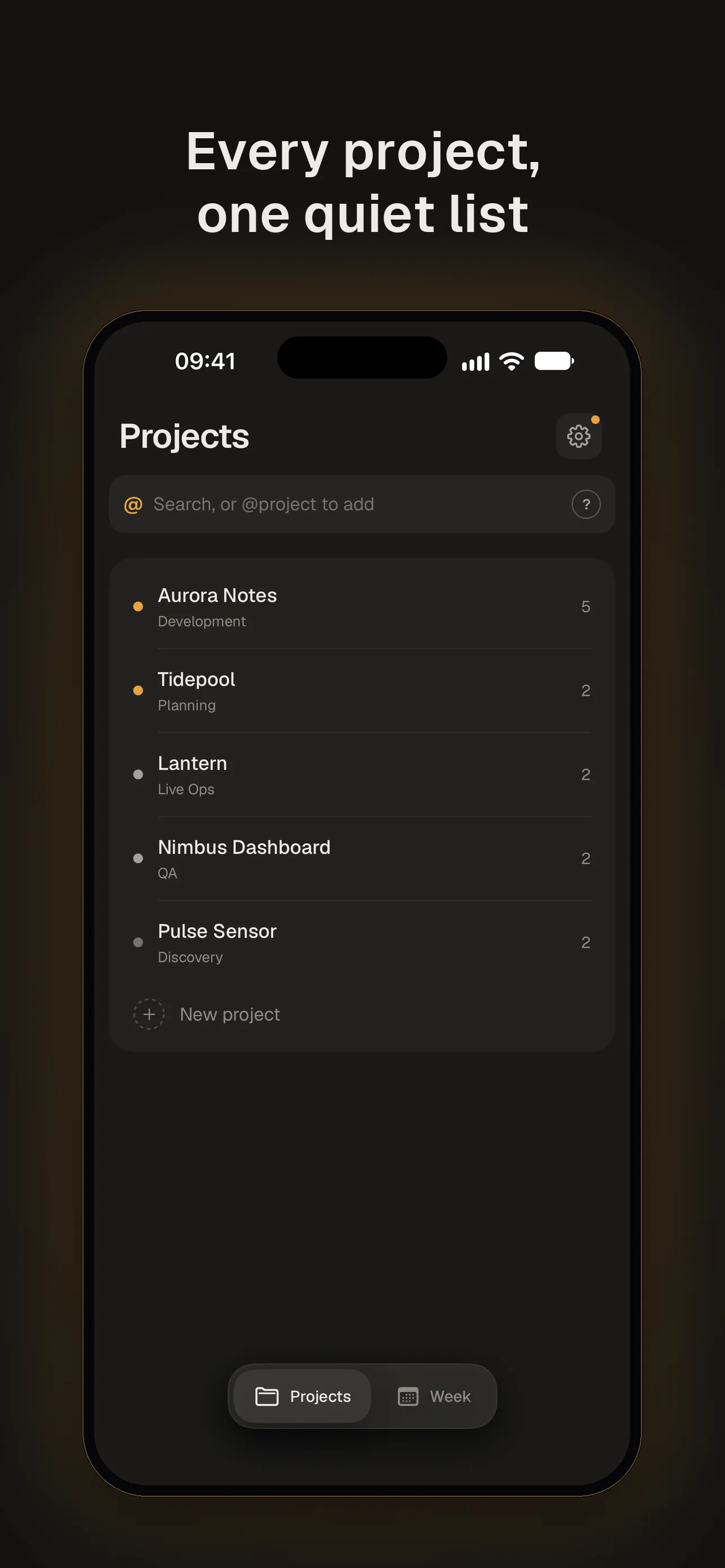
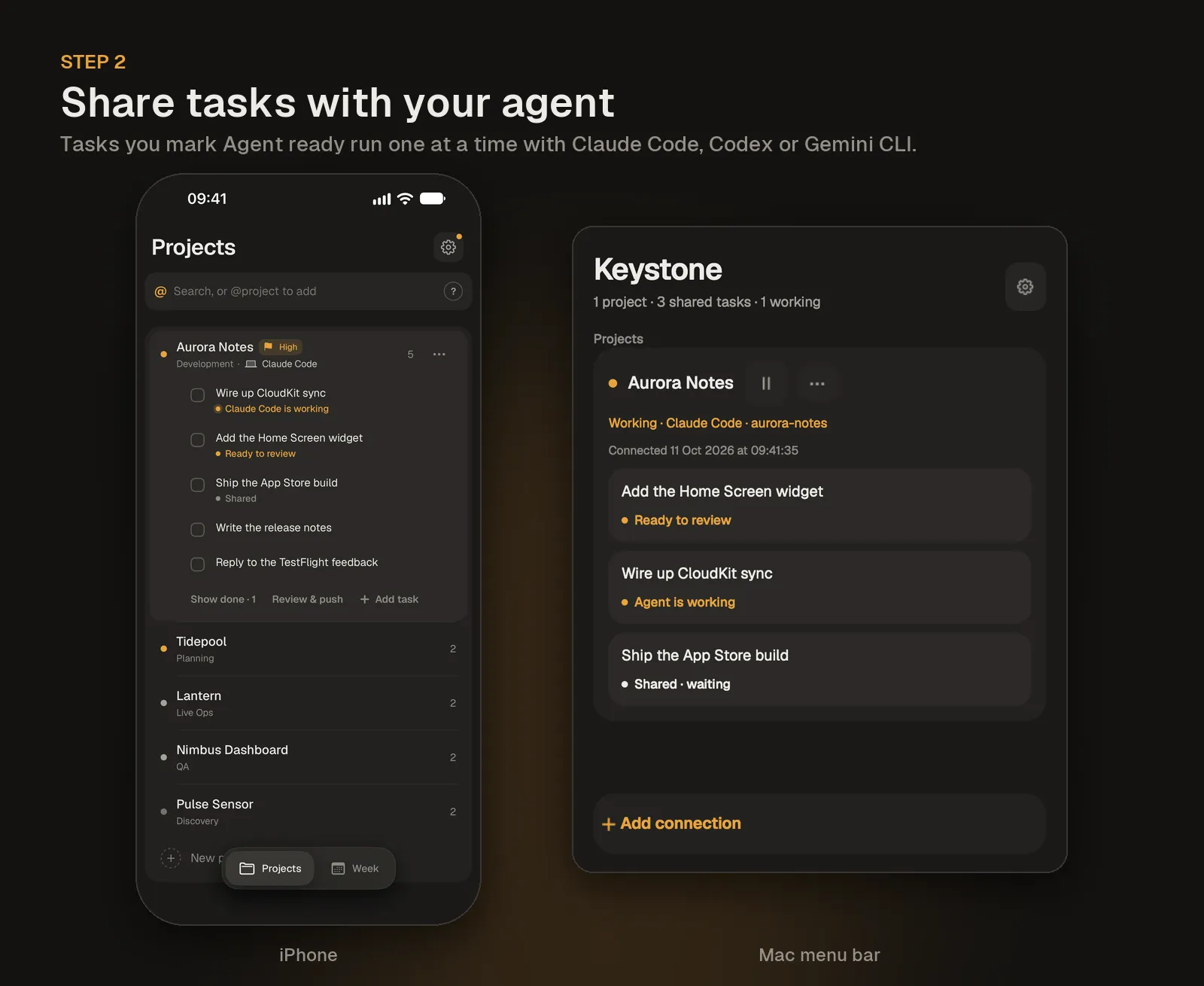
- Projects: every active project in one list, each marked by its priority. A raised hand replaces the marker when an agent is waiting on you. Tap one to see its open tasks; completed work folds away, and finished projects can be archived.
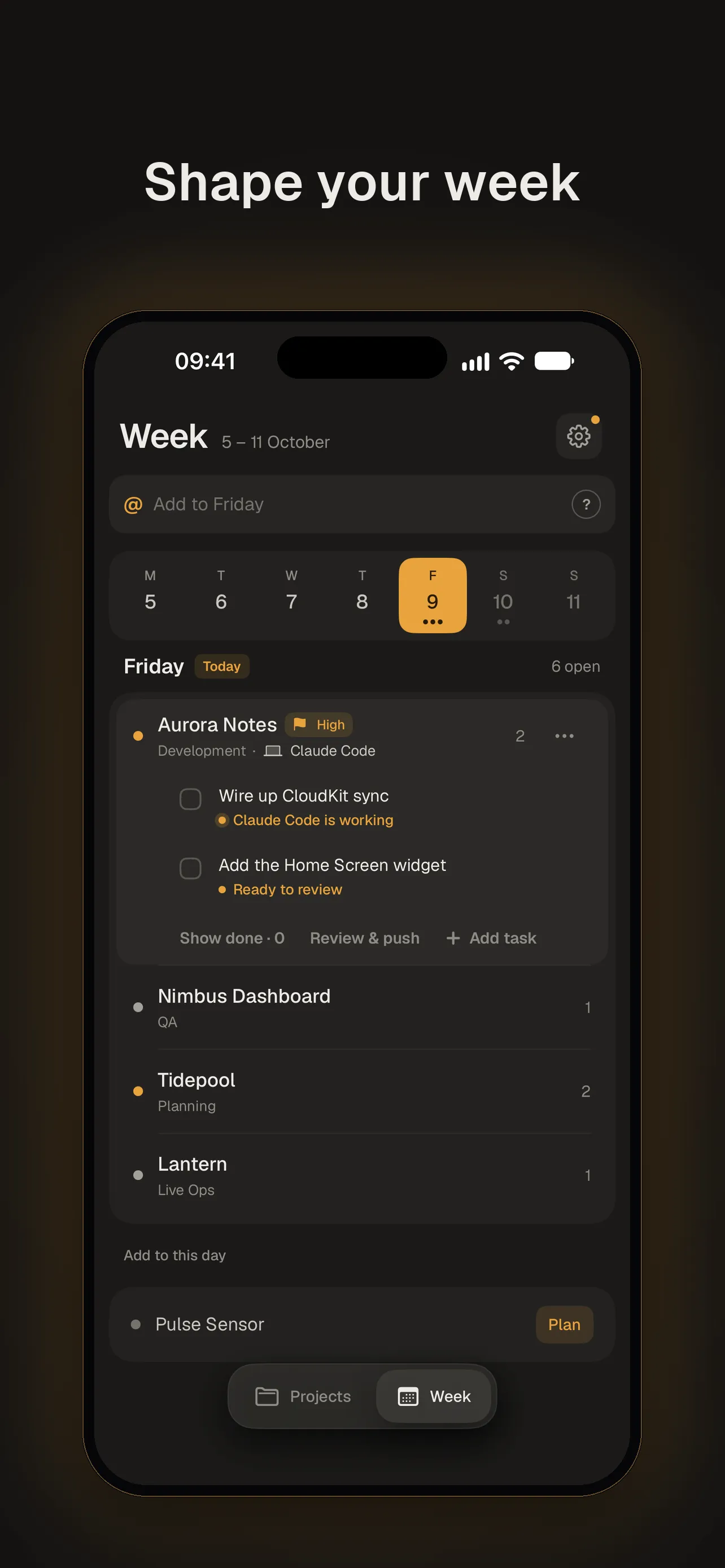
- Week: opens on today. Tap Set up this day to check the projects you’ll work on, schedule tasks and see what’s coming. A Home Screen widget keeps today’s tasks close.
- Command bar: type a task and tag it as you go.
@projectpicks or creates the project,?today,?tomorrowor?monschedules it, and!highsets the priority. - Tray: swipe up on the tabs to see everything that needs you.
- Sharing: copy open tasks, or share them as a Markdown file.
- Your data: projects sync through your private iCloud, with no account to create. Export a full backup or save one to iCloud from Settings. No ads, no tracking.
Hand tasks to a coding agent
The coding-agent features are optional. They connect Keystone to Claude Code, Codex or Gemini CLI running on your own Mac, with your own account. Only the tasks you choose to send leave your iPhone, and your code stays on your Mac.
Coding agents are an invite-only beta. Email me for an invite link, then paste it in Keystone under Settings → Coding agents. Until you join, Keystone hides the agent features.
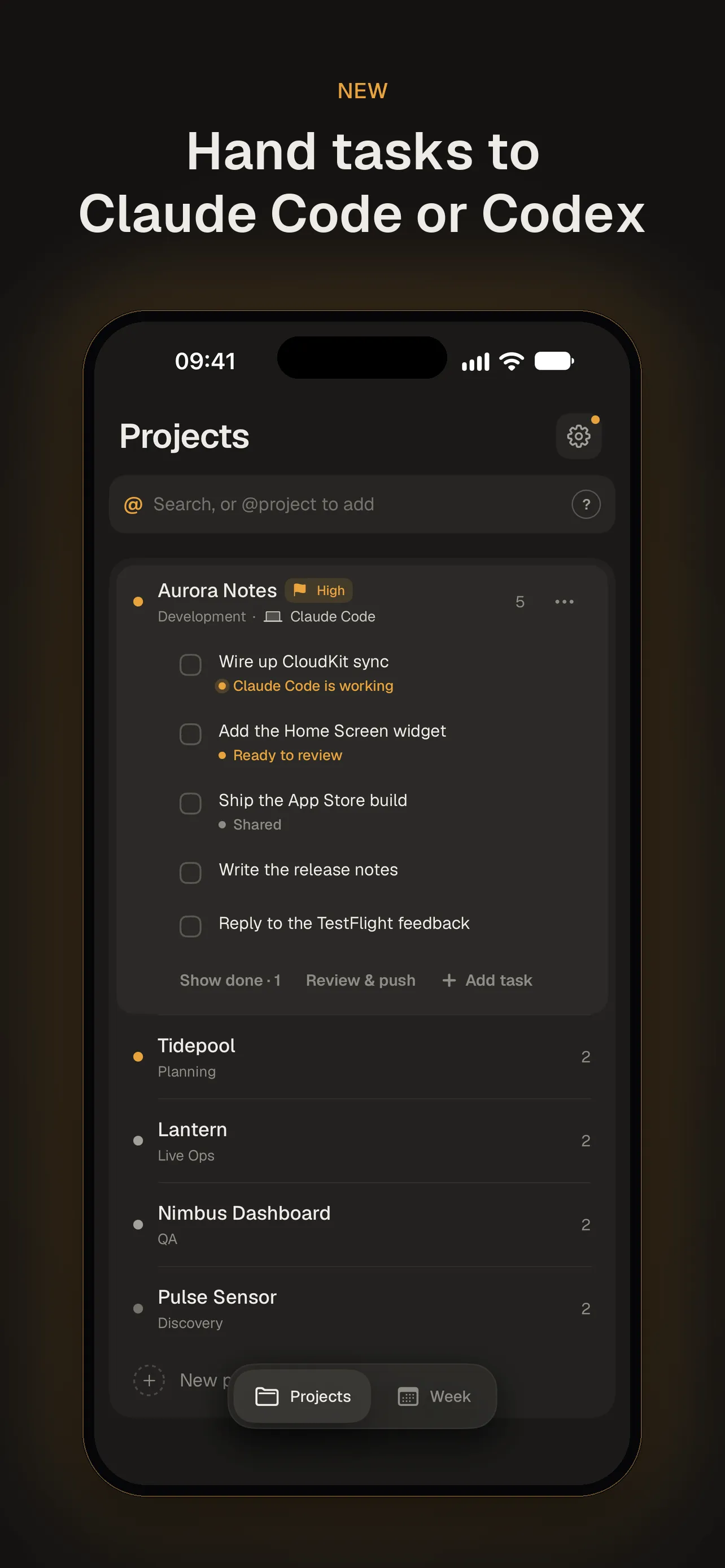
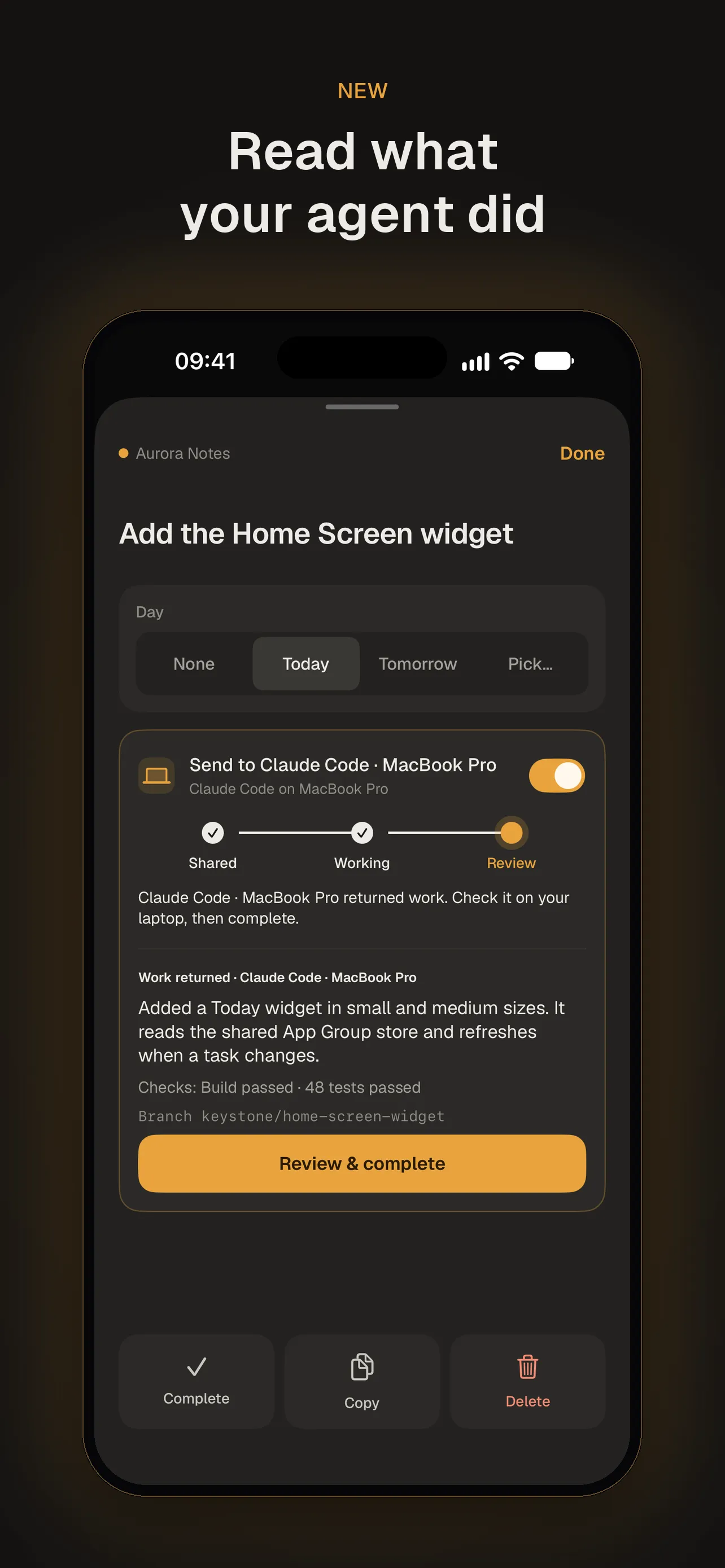
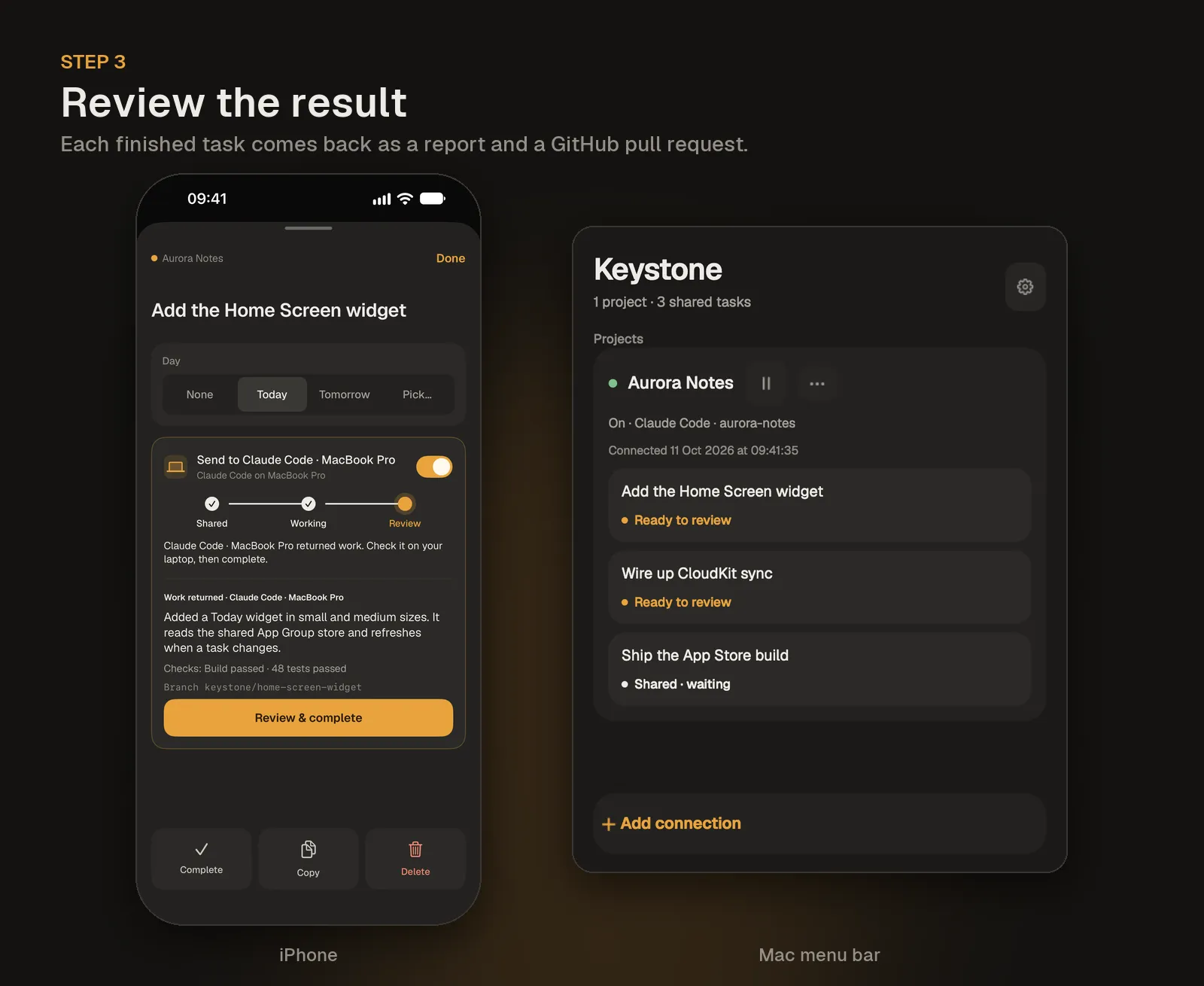
- Open a task and turn on Send to your agent. Keystone shows its progress: Shared, Working, Ready to review, or that the agent needs permission.
- When the agent finishes, read its summary, the checks it ran and the branch it used.
- Each task becomes a GitHub pull request. Merge it and the task is completed in Keystone. Close it and the task is no longer shared.
- To ask for changes, comment
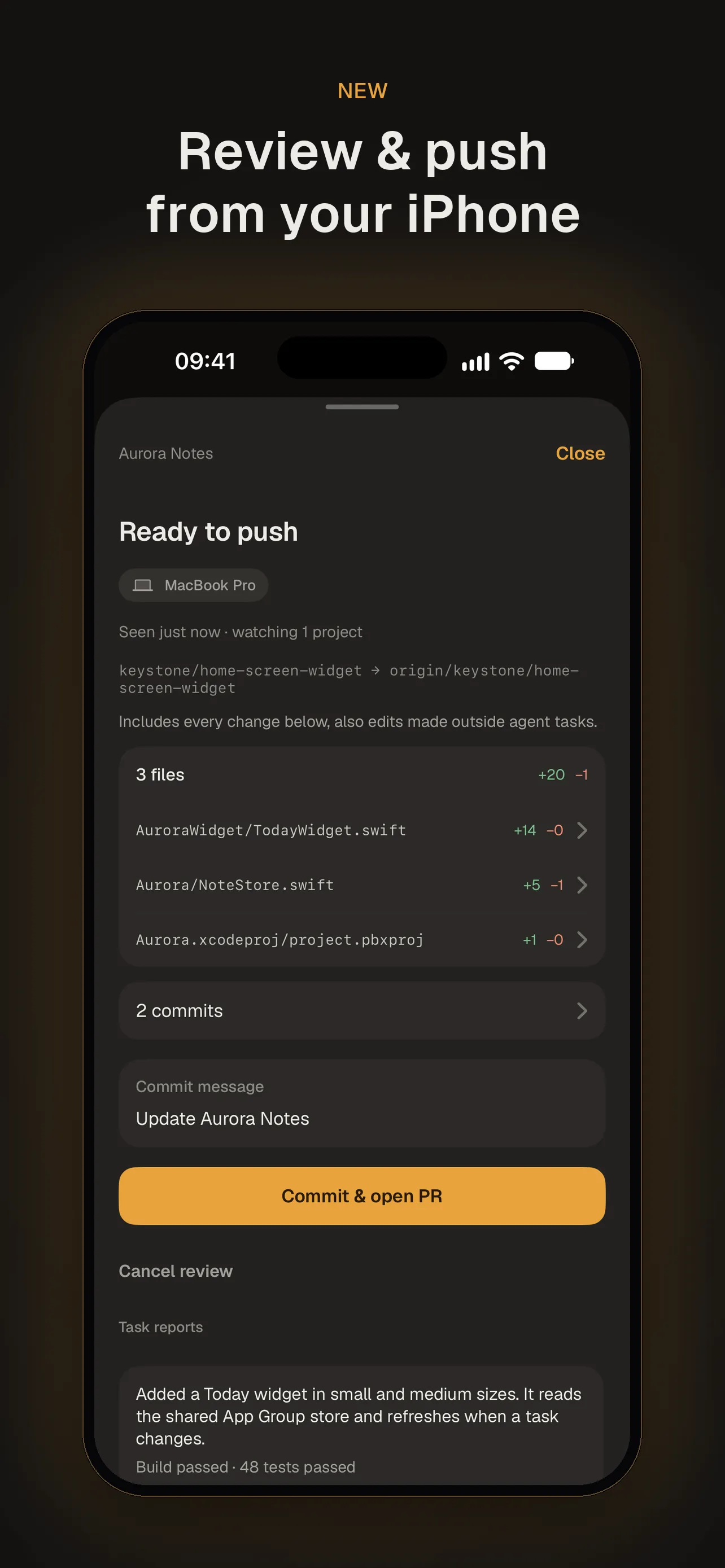
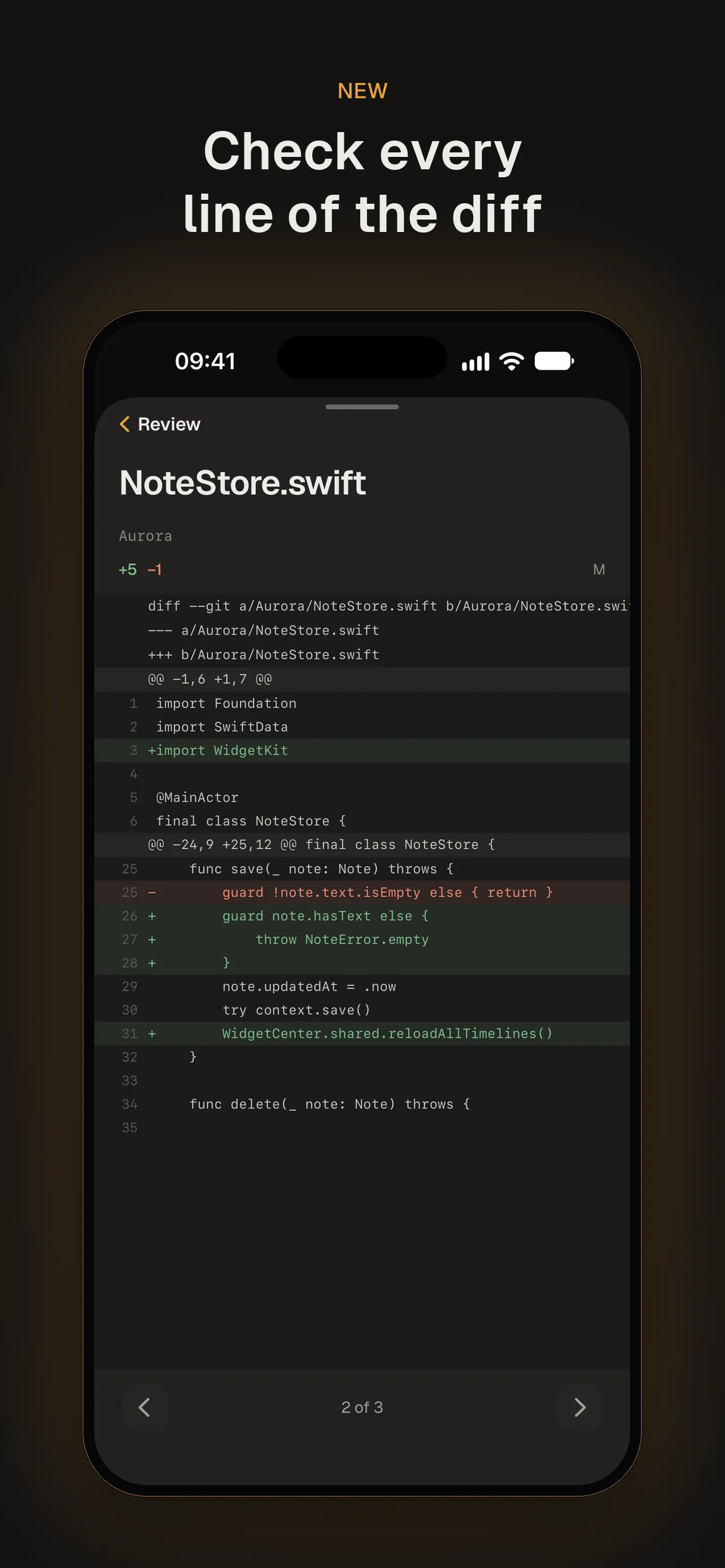
/keystonefollowed by your request on the pull request. The agent works on the same branch and replies with the new commit. - Review & push covers your own edits too: see every changed file and the unpushed commits, open any file for a line-by-line diff, then commit to a new branch and open a pull request from your iPhone.
Keystone Listener for Mac
Keystone Listener is the free menu-bar app that does the work on your Mac. It checks for shared tasks with ordinary HTTPS requests, every 15 seconds on power and every 60 seconds on battery, and makes no model calls while it waits. When a task arrives, it starts your agent in a separate working folder on a new branch, so your own checkout is never touched. Then it commits, pushes and opens the pull request.
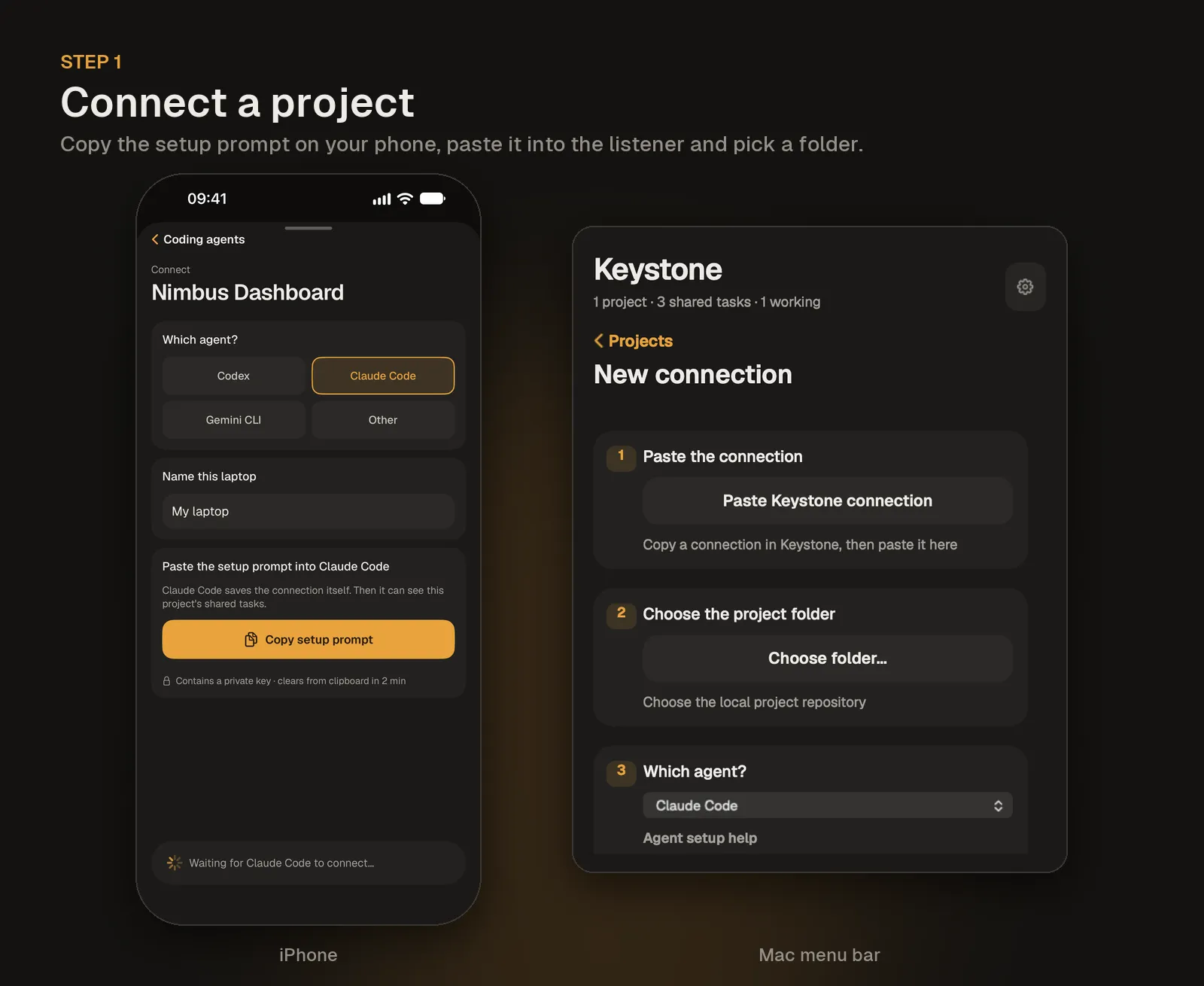
To set it up:
- Install: download Keystone Listener (Apple silicon, macOS 13 or later). The installer is signed and notarized by Apple.
- Join: in Keystone, open Settings, tap Coding agents and paste your invite link. You do this once per iPhone.
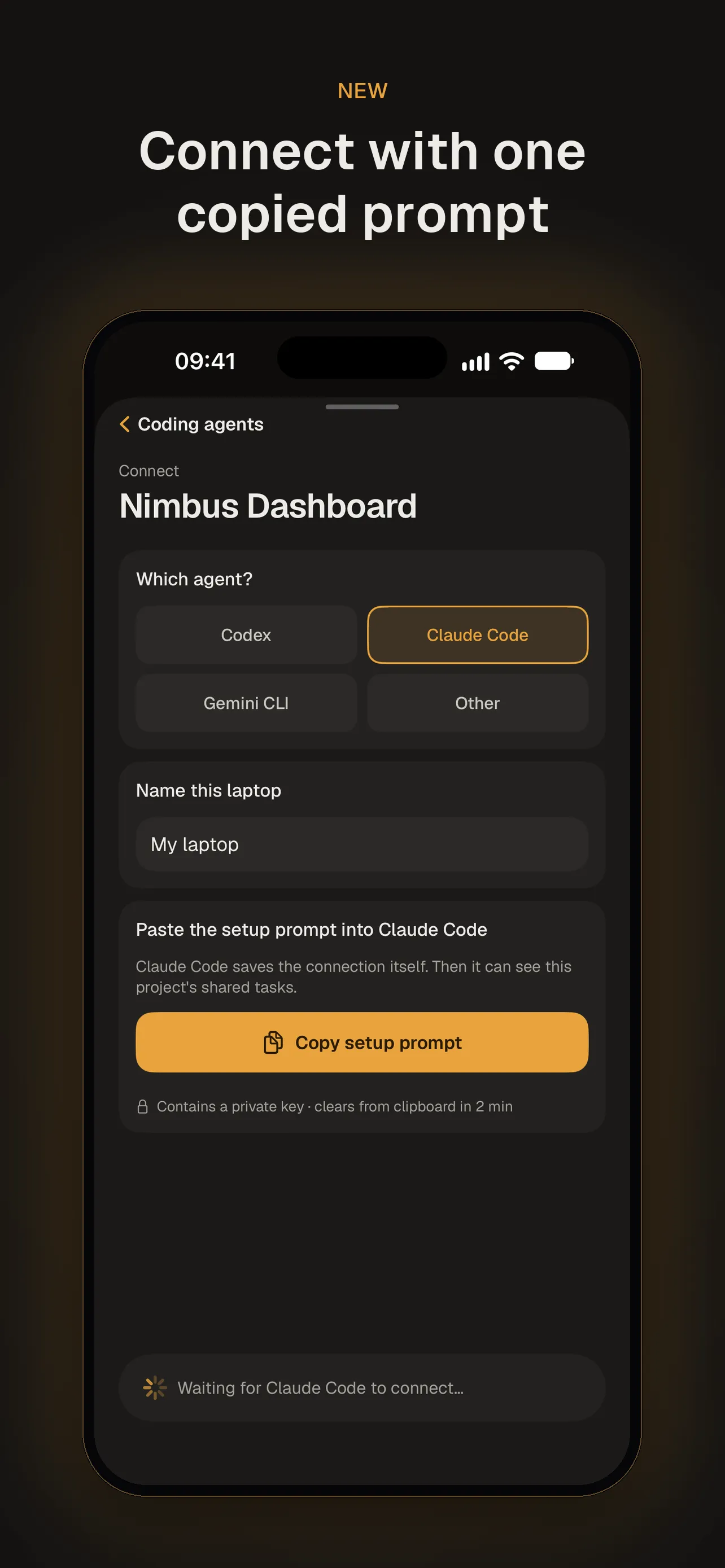
- Copy: choose a project and your agent, and tap Copy setup prompt.
- Connect: in the menu-bar app, click Add connection, paste the connection, choose the project’s folder and click Connect & enable.
Optionally, the listener posts a short card to a Discord channel as tasks move: ready to review with a link to the pull request, needs permission, failed, merged or closed. Add a channel webhook under Discord updates… in the menu-bar app.
You need your coding CLI installed and signed in, Git with push access, and the GitHub CLI (gh) for pull requests. Your Mac has to be awake with the listener running. The listener bundles its own runtime, so there’s nothing else to install. Requirements, troubleshooting and uninstall steps are in the Keystone Listener README.
Screens
7